Configure Convenience Fee for Credit Card Payments
Stay is enhanced to allow users to configure a convenience fee percentage for the different credit card types used at the property. For example, users can configure a 3% charge for payments made using Visa card, and a 5% charge for the payments made using Mastercard. The convenience fee is collected as a percentage of the final amount that is due at check-out from the following screens based on the credit card type used:
-
Early Check Out with a Balance
-
Batch Operations – Settle Only, Settle and Check Out, and Force Check Out
This feature is applicable only for credit cards.
Feature Setting
The following new feature setting has been introduced to allow users to configure a convenience fee percentage for the different credit card types:
-
Name: Card Convenience Fee
-
Value: Must be enabled
-
Comments: License is not required
Permission
The following new permission has been introduced to allow users to override and modify the convenience fee charged and proceed with the payment:
-
Stay_CardConvenienceFeeOverride
This permission is mapped to the following roles by default:
-
GSA
-
GSA Supervisor
-
Department Manager
-
System Administrator
-
Stay Hotel Manager
-
Stay Hotel Supervisor
-
Stay Front Desk
-
Stay Night Audit
-
Stay Accounting
-
Accounts Receivable Manager
Configure Convenience Fee for Credit Card Types
When the Card Convenience Fee feature setting is enabled, users can configure the convenience fee percentage for the credit card types by entering the percentage value in the Convenience Fee field on the Add/Edit Payment Method screen (Guest Accounting ➜ Payment Methods ➜ Add/Edit). Users can enter whole numbers from 1 to 99 and decimal numbers having a maximum of two digits after the decimal point.
When users enter a number greater than 100, the message, Percentage cannot be greater than 100, is displayed and when users enter a decimal number having more than 3 digits after the decimal point, the message, Only two digits allowed after decimal point, is displayed.
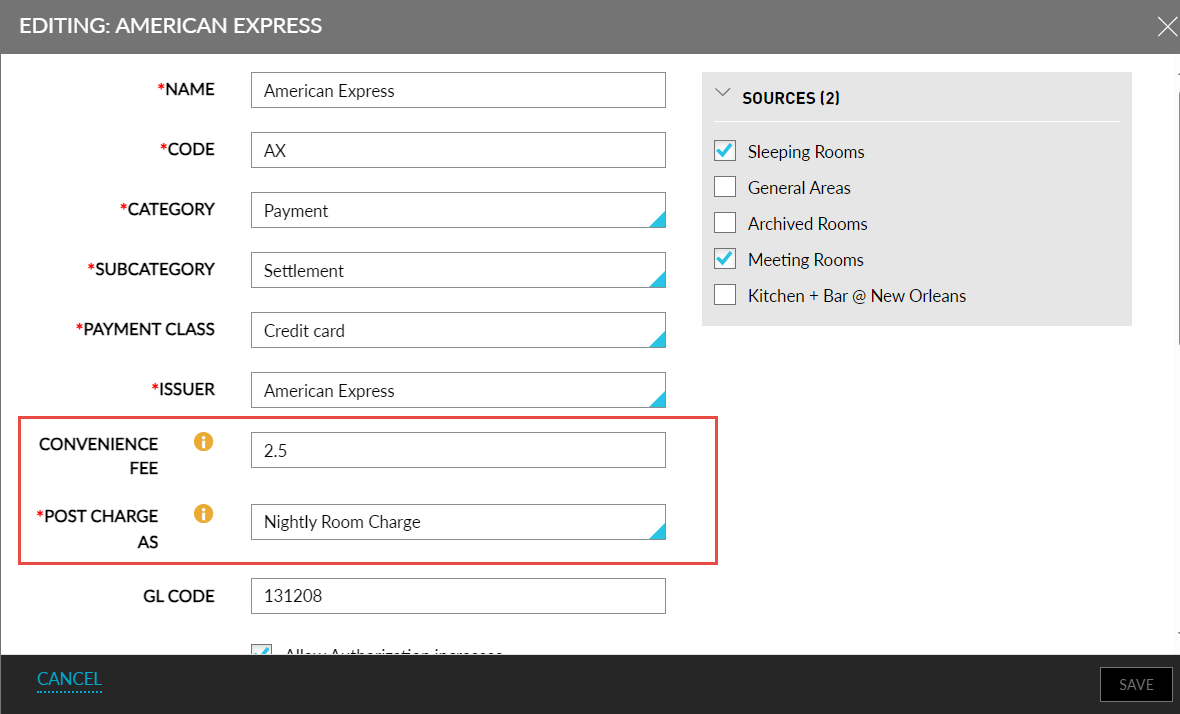
Once the convenience fee percentage is configured, under the Post Charge As drop-down list, users can select the transaction item using which the convenience fee is to be posted. This is a single-select drop-down list that displays a list of all active transaction items at the property. This field is mandatory when users configure a convenience fee percentage for a credit card type.
Collecting Convenience Fee
Early Check Out with a Balance screen
When users check out the reservation by choosing the Pay Balance option, the convenience fee associated with the selected credit card payment type is displayed on the Early Check Out with a Balance screen in the following format: <Convenience fee amount> (<Convenience fee percentage>). The convenience fee is calculated based on the amount due at check-out.
Users with the Stay_CardConvenienceFeeOverride permission can override and modify the convenience fee amount by clicking on the displayed convenience fee. When clicked, the Confirmation pop-up screen appears that displays the following fields:
|
|
|---|---|
|
|
|
|
|
|
When users click Submit, the credentials of the users are validated to check if the user has the required permission. If the authentication is successful, the convenience fee is modified successfully. If the user does not have the required permission, the following message is displayed: You do not have sufficient permission to override convenience fees.
Batch Operations – Settle, Settle & Checkout, and Force Checkout
The convenience fee can be collected optionally when users perform the following options for the selected reservations on the Settle & Check Out tab of the Batch Operations screen using a credit card payment type that is associated with a convenience fee:
-
Settle Only
-
Settle and Check Out
-
Force Check Out
The following messages are displayed on the pop-up screens for the selected options:
-
Settle Only: Do you want to charge processing fee for the selected reservations and proceed with Settle?
-
Settle and Check Out: Do you want to charge processing fee for the selected reservations and proceed with Settle & Checkout?
-
Force Check Out: Do you want to charge processing fee for the selected reservations and proceed with Force Checkout?
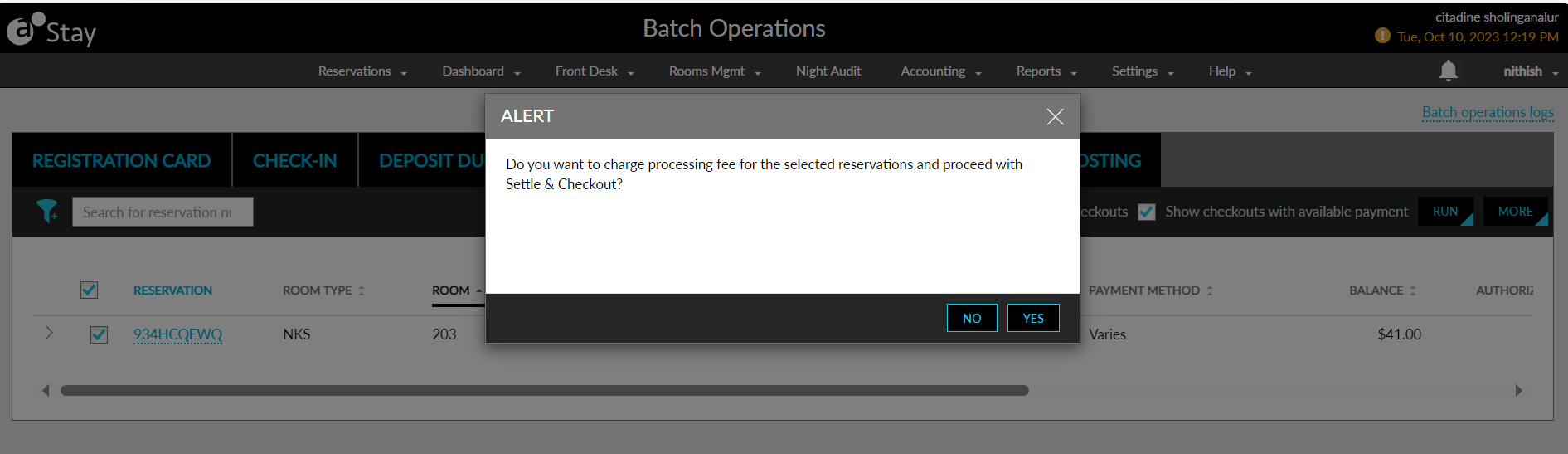
When users select Yes, the convenience fee is collected, and the reservation is settled/checked out successfully. When users select No, the convenience fee is not processed, and the selected reservations are settled/checked out accordingly.